Settings
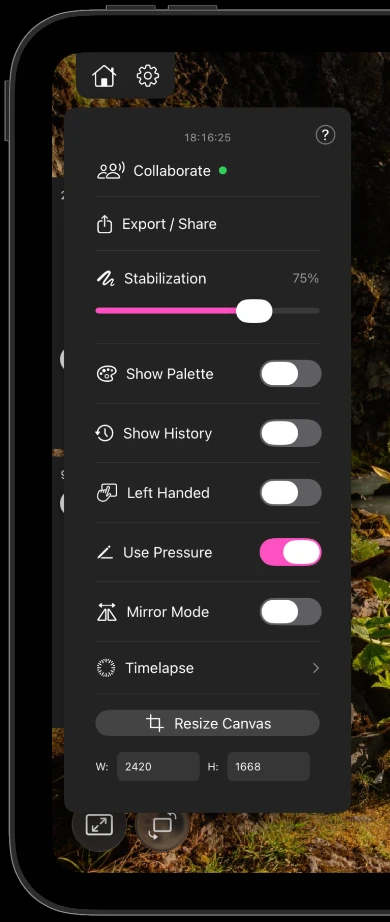
The gear button opens the settings menu. Everything that is not a painting tool lives here, and this is the full list in the order you meet it.
The menu
| Row | What it does |
|---|---|
| Time spent | How long you have worked on this project. Shown at the top, not a control |
| Collaborate | Starts or manages a Draw Together session. A green dot means one is live |
| Export / Share | Renders the artwork and opens the share sheet |
| Stabilization | Smooths your strokes as you draw. Higher is cleaner, lower keeps your hand |
| Show Palette | Shows or hides the floating palette. iPad only, iPhone has a bottom-bar button |
| Show History | Shows or hides the floating history list. iPad only |
| Left Handed | Moves the size and fill sliders to the opposite edge. iPad only |
| Use Pressure | Whether Apple Pencil pressure shapes your strokes. iPad only |
| Mirror Mode | Turns on symmetry for the active layer and asks for an axis |
| Timelapse | Opens the timelapse options: play, export and the record switch |
| Resize Canvas | Type a new width and height, or crop visually |
| Circled ? | In the top right corner. Replays the first-run tutorial |
Worth knowing
- Mirror Mode is per layer, not per project. Switching layers switches which symmetry is active.
- Left Handed and Use Pressure are app-wide, so they carry across every project.
- Resize Canvas applies when you close the menu. Typing a size and then reopening the menu without closing it will not resize anything.
- Stabilization is a per-project setting and is saved with it.