Clone Stamp
The clone stamp paints with pixels from somewhere else on your canvas. Use it to repeat a texture, extend a pattern, or paint something out.
Using it
- Tap the clone stamp tool. A loupe appears on the canvas.
- Drag the loupe over the area you want to copy from. It shows you exactly what is underneath it.
- Paint somewhere else. What comes out of the brush is the area under the loupe.
- The source moves with your stroke, keeping the same offset, so a texture continues naturally instead of repeating one identical patch.
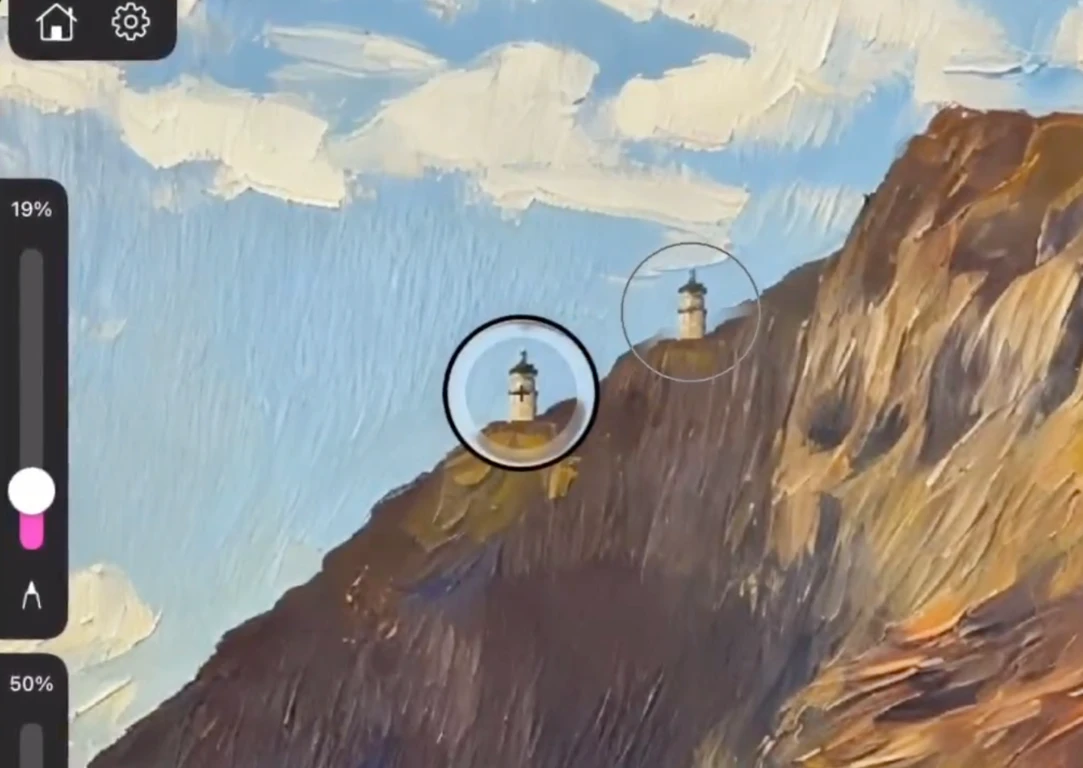
With an Apple Pencil
Hover the Pencil above the canvas before touching down and you get a preview of what the stamp will lay there. It saves the usual cycle of stamping, undoing and repositioning.
Getting good results
- Use a soft-edged brush. A hard round leaves a visible seam where the cloned patch meets the original.
- Lower the fill slider and build the clone up in passes, so it blends instead of sitting on top.
- Reposition the loupe often. Sampling from the same spot repeatedly is what makes cloning look obviously cloned.
- The clone stamp respects an active selection, which is the cleanest way to keep it from spilling over an edge.