Distortion Tools
Three brushes that move paint instead of adding it. They run on the GPU, so they stay responsive even on a large canvas.
Choosing an effect
Tap the distortion button to pick one. The button then shows whichever effect you used last.
| Effect | What it does |
|---|---|
| Smudge | Pushes and blurs pixels along the direction of your stroke |
| Pinch | Squeezes pixels inward toward your finger |
| Bubble | Inflates pixels outward, away from your finger |
Controlling them
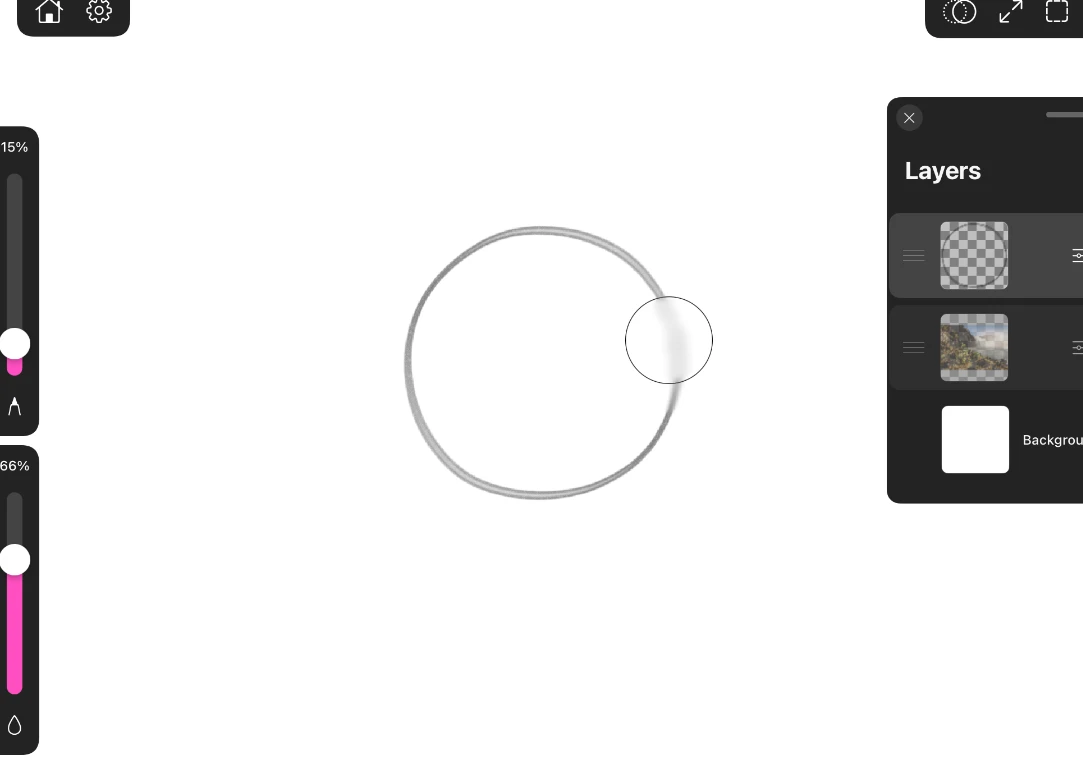
The size slider sets how wide an area each one affects, and the fill slider sets how strongly. Low fill nudges. High fill shoves.
- Smudge at a low strength blends two colors into each other the way a finger blends pastel. At high strength it drags paint into streaks.
- Pinch tightens a shape. Repeated light passes pull an edge in gradually.
- Bubble is the inverse. It is the fast way to exaggerate a curve, swell a highlight, or push a form outward.
Tip
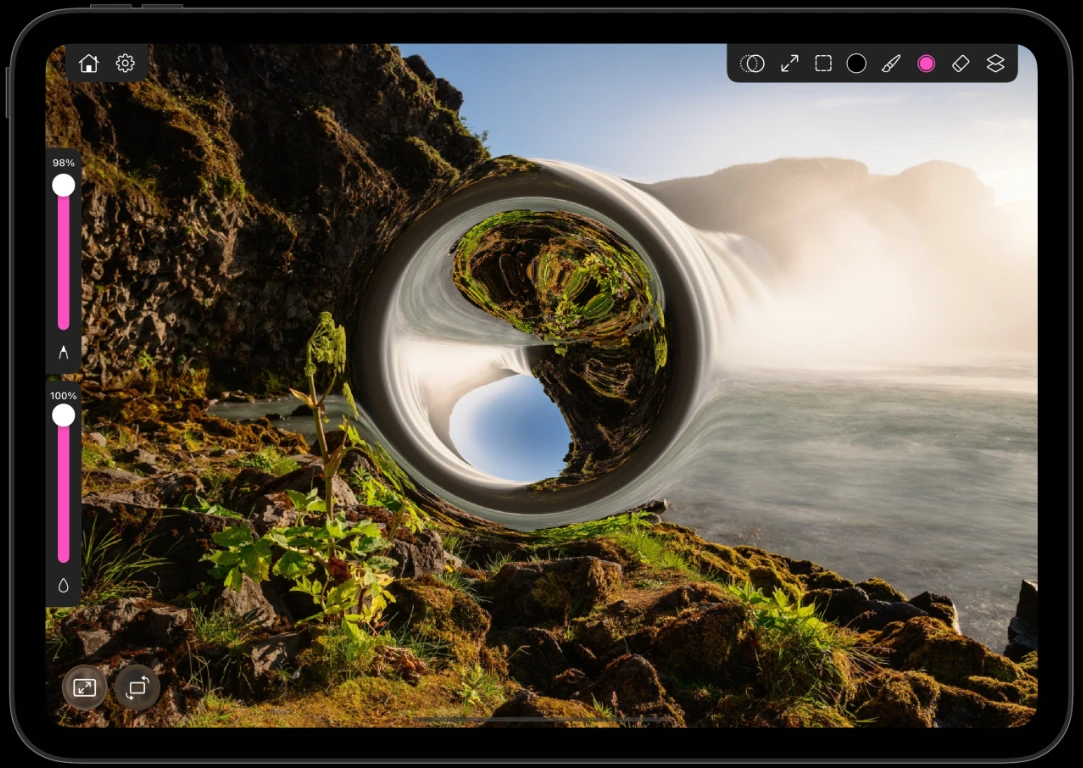
Turn any of them up to maximum for effects rather than corrections.
Note
Distortion works on the active layer only, and respects an active selection. To warp a whole painting at once, merge it down first, or use Liquid Mode.