Liquid Mode
Liquid Mode treats a whole layer as wet paint. You can reshape what you painted without redrawing it, and the result stays sharp rather than turning to mush.
Entering Liquid Mode
Swipe a layer row to the left in the layers panel and choose Liquid. The layer becomes fluid and every other control steps out of the way.
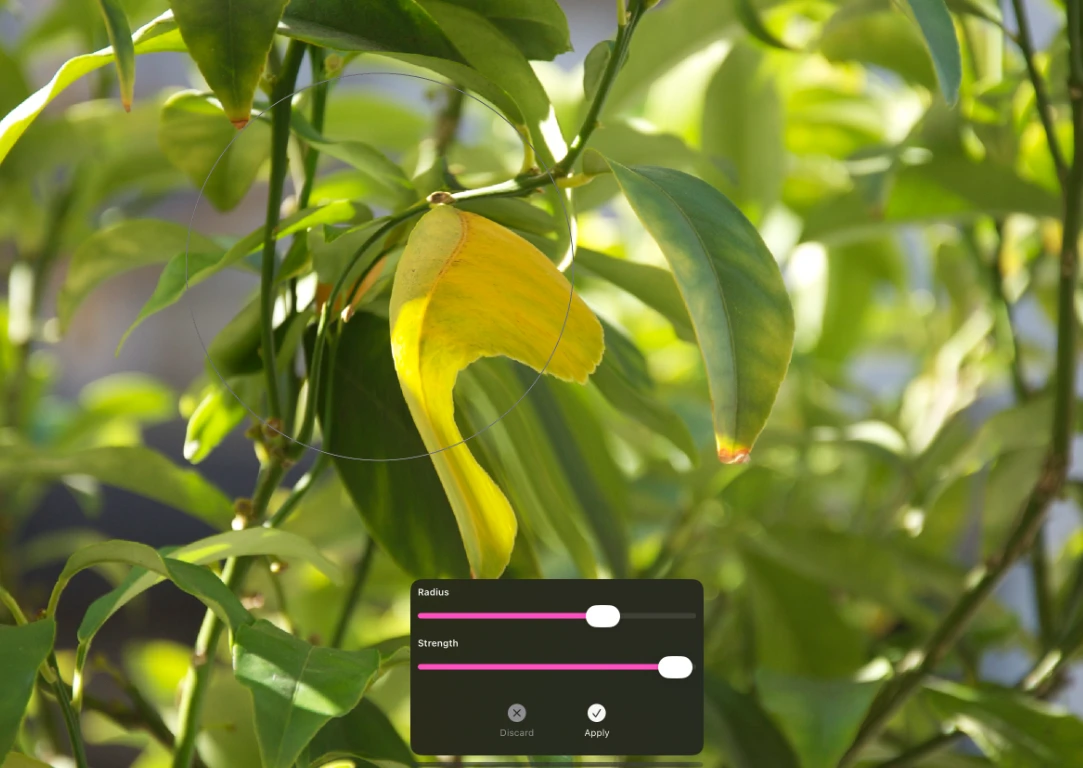
Using it
Drag across the layer and the paint follows your finger. Push a nose into a different shape, bend a horizon, pull a highlight into a streak, or melt an entire form into something abstract.
Distortion accumulates. A second pass over the same place keeps pushing rather than starting over, so you can build a large change out of several small deliberate moves.
- Two-finger tap undoes your last liquid stroke without leaving the mode.
- Three-finger tap redoes it.
- Leaving the mode commits the result to the layer.
Liquid Mode or the distortion tools?
- Use the distortion tools for local work: a smudge here, a pinch there, while you are still painting.
- Use Liquid Mode for a whole layer at once, when the shape of something is wrong rather than its detail.
Wet media keeps moving for a moment after you lift. Paintrix Studio settles any still-flowing ink into the layer before Liquid Mode starts, so nothing is lost on the way in.