Selections
A selection limits everything you do to one part of the canvas. Paint, erase, distort or transform inside it and the rest of the layer is untouched.
The five modes
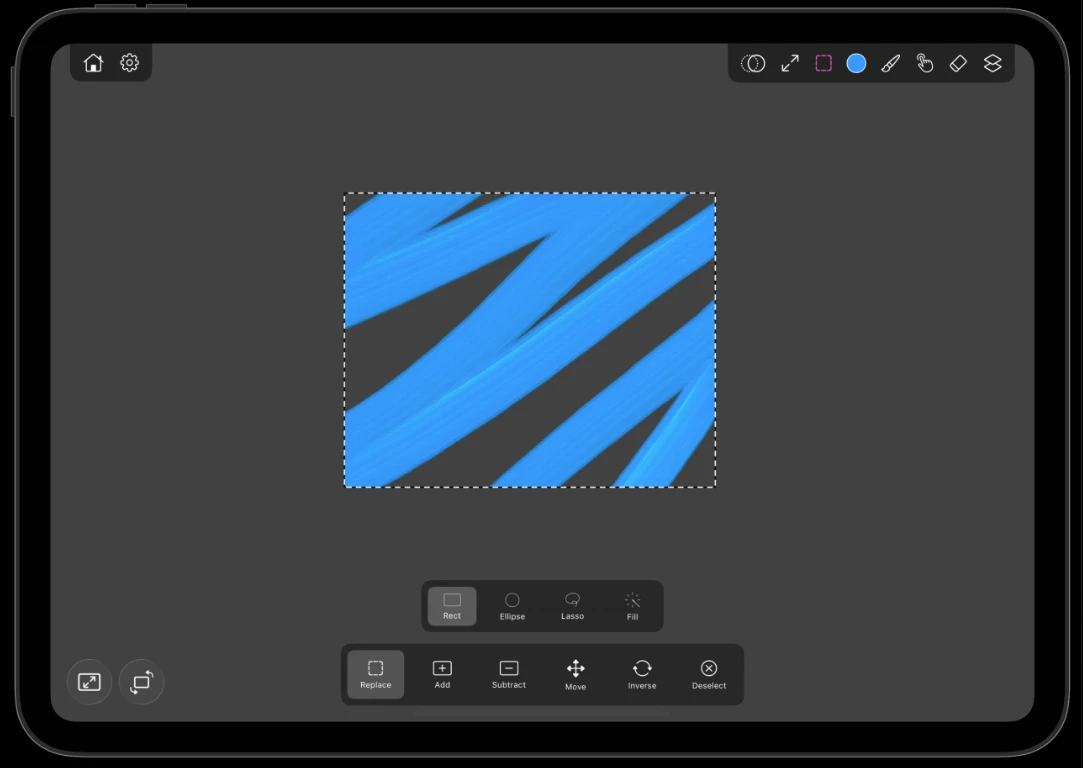
Tap the selection tool to pick a mode.
| Mode | How you use it |
|---|---|
| Rectangle | Drag out a clean rectangular area |
| Ellipse | Drag out a round or oval area |
| Lasso | Draw any freehand outline |
| Magic Wand | Tap a region to select connected pixels of similar color |
| Flood Fill Wand | Tap to select a connected area and fill it in one action |
Controlling tolerance
The two wand modes judge which neighbouring pixels count as the same color, and that threshold is under your finger. Touch down and keep dragging: the selection grows as you move one way and shrinks as you move back. Lift when it covers what you wanted. You are feeling out the edge rather than typing a number and retrying.
Working with a selection
- Paint and erase clip to the selection, so you can lay a stroke across an edge and only the inside of the selection takes it.
- The transform tool acts on the selected pixels alone, so you can move or scale part of a layer.
- Distortion and the clone stamp respect it too.
Tip
A selection plus Alpha Lock is a powerful pair: the selection bounds the area, the lock bounds it to existing paint.