The Palette
The palette is a small floating panel that holds the colors and brush presets you keep coming back to. It goes wherever you drag it and stays out of the way.
Showing the palette
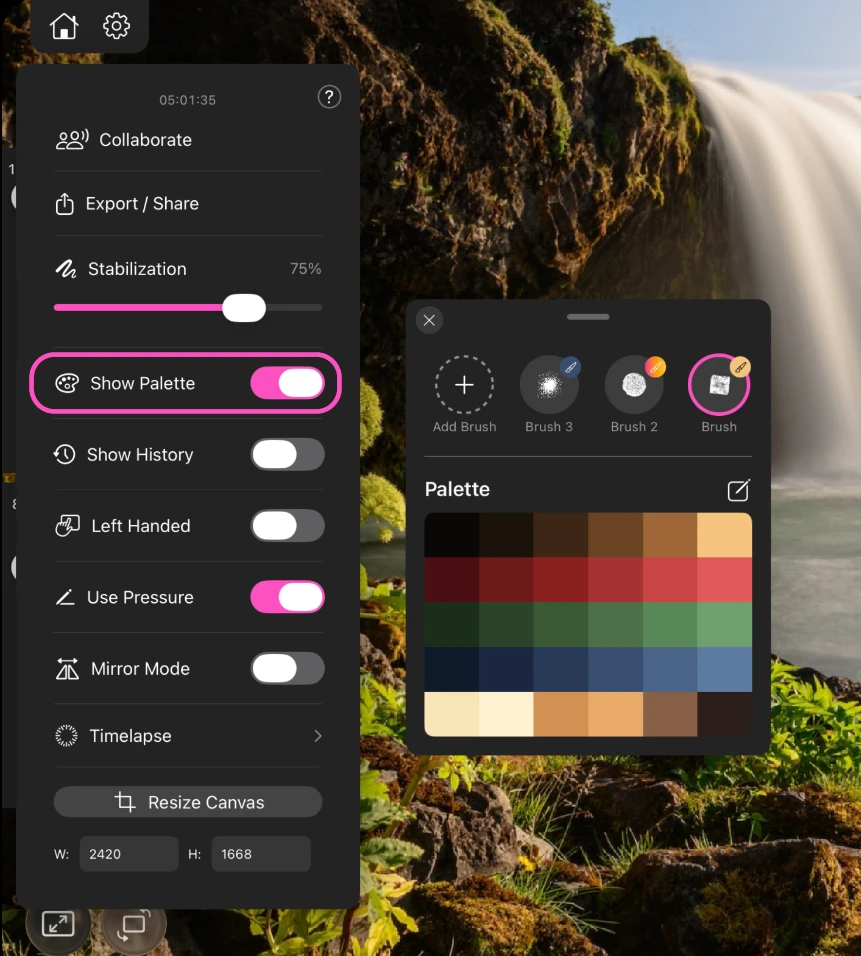
- On iPad, open the gear menu and turn on Show Palette.
- On iPhone, tap the palette button in the bottom bar.
Drag the palette by its top edge to reposition it. It remembers where you put it.
Using it
- Tap a color to paint with it.
- Drag a color onto the canvas and drop it to flood fill the area underneath.
- Tap a brush preset to restore that brush along with its size, fill and color in one go.
Saving a brush preset
Add Brush saves your current setup as a preset: the brush itself, its size, its fill and its color. Choose whether it is saved as a Brush or as an Eraser, and from then on it is one tap away. Long press a preset to rename or delete it.
Building a palette
The pencil button opens the palette menu, which is where every way of adding colors lives.
| Menu item | What it does |
|---|---|
| Add Color to Palette | Adds the color you are currently painting with |
| Generate From Image | Pulls a full palette out of a photo automatically |
| Select From Presets | Picks from the palettes that ship with the app |
| Save to Presets | Stores the current palette so you can reuse it in other projects |
| Import Palette… | Loads a palette file from Files or iCloud |
| Export Palette… | Shares the current palette as a file |
Palette files
Paintrix Studio reads and writes two formats:
.mdpalette, the app's own format. Exporting gives you one of these, and it can hold several palettes at once..swatches, Procreate's format. Import these and the colors come across unchanged, so an existing library moves over intact.
Opening either file from Files, Mail or AirDrop sends it straight to the palette. You get a confirmation showing the colors before anything is added.
There is a browsable library of ready-made palettes at paintrix.studio/color-palettes. Opening one on a device with the app installed imports it directly.