The Interface
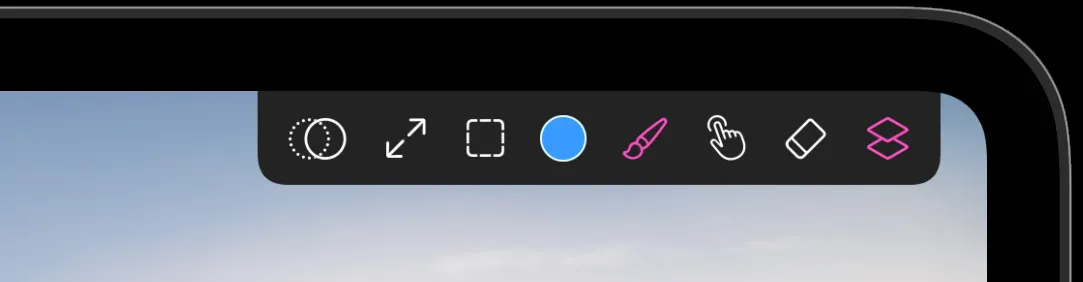
A guided tour of the canvas screen. The same tools are on every device, but iPad spreads them across the top while iPhone splits them between a capsule and a bottom bar.
The toolbar
Tools are single-tap to select. Several of them open a picker on a second tap, which is where their options live.
| Tool | What it does | Second tap |
|---|---|---|
| Clone stamp | Paints a copy of another part of the canvas | — |
| Transform | Moves, scales, rotates and distorts the layer or selection | — |
| Selection | Limits painting to part of the canvas | Choose the selection shape |
| Color | The current color swatch | Opens the color picker |
| Brush | Your main painting tool | Opens the brush library |
| Distortion | Smudge, pinch and bubble | Choose the effect |
| Eraser | Erases with the same brush engine | Choose an eraser style |
| Layers | Opens the layers panel | — |
The size and fill sliders
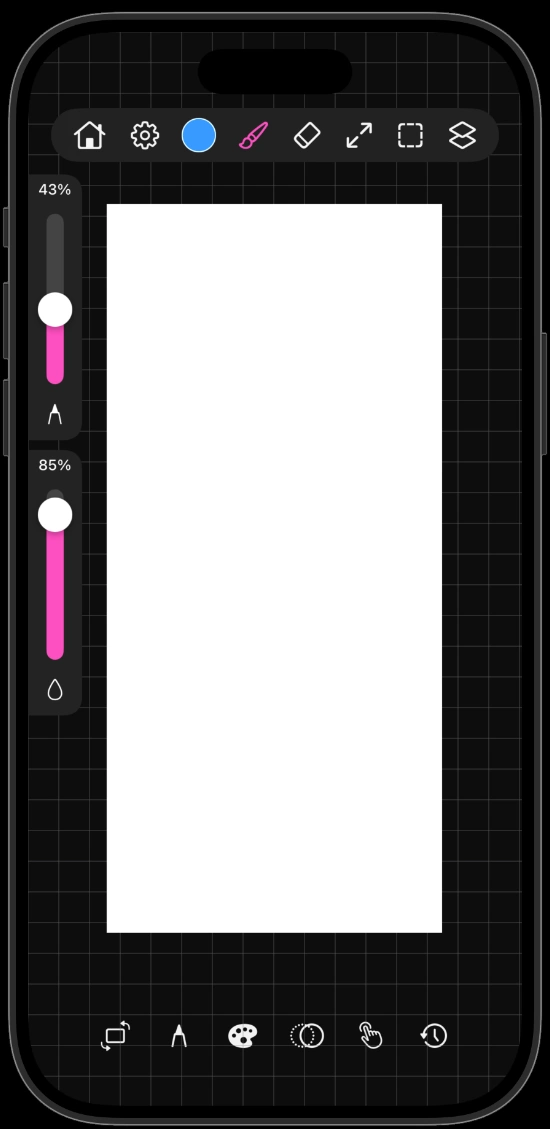
Two vertical sliders run down one edge of the canvas.
- Size sets the brush diameter. A live preview of the actual brush tip appears next to the slider while you drag, so you can see the texture at that size rather than guessing from a number.
- Fill is the drop-shaped slider. It sets how much paint each stroke lays down. Keep it low to build color up gradually the way a glaze does, and high for solid, opaque coverage.
On iPhone the pencil-tip button in the bottom bar hides both sliders when you want a clean view of the canvas.
Fill behaves differently per brush family. Pencils and charcoals use a much steeper curve, so low fill values stay genuinely light and let you shade in passes.
The floating panels
Three panels float above the canvas. Each has a grip along the top: drag it to move the panel wherever it is out of your way, and it stays there.
- Layers from the layers button. See Layers.
- Palette, your saved brushes and colors. See The Palette.
- History, a list of recent strokes and actions you can jump back through.
On iPad the palette and history are switched on in the settings menu. On iPhone they have their own buttons in the bottom bar.
The iPhone layout
iPhone has less room, so the controls split in two.
- The top capsule holds color, brush, eraser, transform, selection and layers.
- The bottom bar holds the slider toggle, the palette, the clone stamp, distortion and history, with the gear for settings.
Panels that appear beside the canvas on iPad open as full-screen sheets on iPhone instead. Everything in them is the same.
Canvas controls
- Toggle interface hides all the chrome so only your artwork is on screen. Tap it again to bring everything back.
- Reset canvas position appears whenever you have zoomed, panned or rotated away from the default view. One tap returns the canvas to fit the screen.
- Left Handed in settings moves the sliders to the opposite edge so your hand never covers them.
Pinch to zoom, two fingers to rotate, and drag with two fingers to pan. The full list is in Gestures.